



Huadisk 3300MB / S SSD Nvme M.2 2280 With Cache 512GB 256GB Internal
38 in stock
Boost your computing speed with the Huadisk NVMe M.2 2280 SSD, delivering impressive transfer rates up to 3300MB/s. This internal drive features integrated cache technology to ensure reliable performance for your professional office or gaming setup.
Price range: $17.49 through $30.99
- Hign-concerned Chemical: None
- Read/Write Speed: Standard
- MTBF: 10000
- 4KB Random Write: 2200
- 4KB Random Read: 1600
- Max Sequential Write: 2000Mbps
- Max Sequential Read: 3300Mbps
- Transport Protocol: NVME
- Bus Type: PCIe 3.0×4
- Cache: 512MB
- RGB: no
- Cooling Fin: No
- Package: Yes
- Nand Flash Type: TLC
- Controller: Marvell
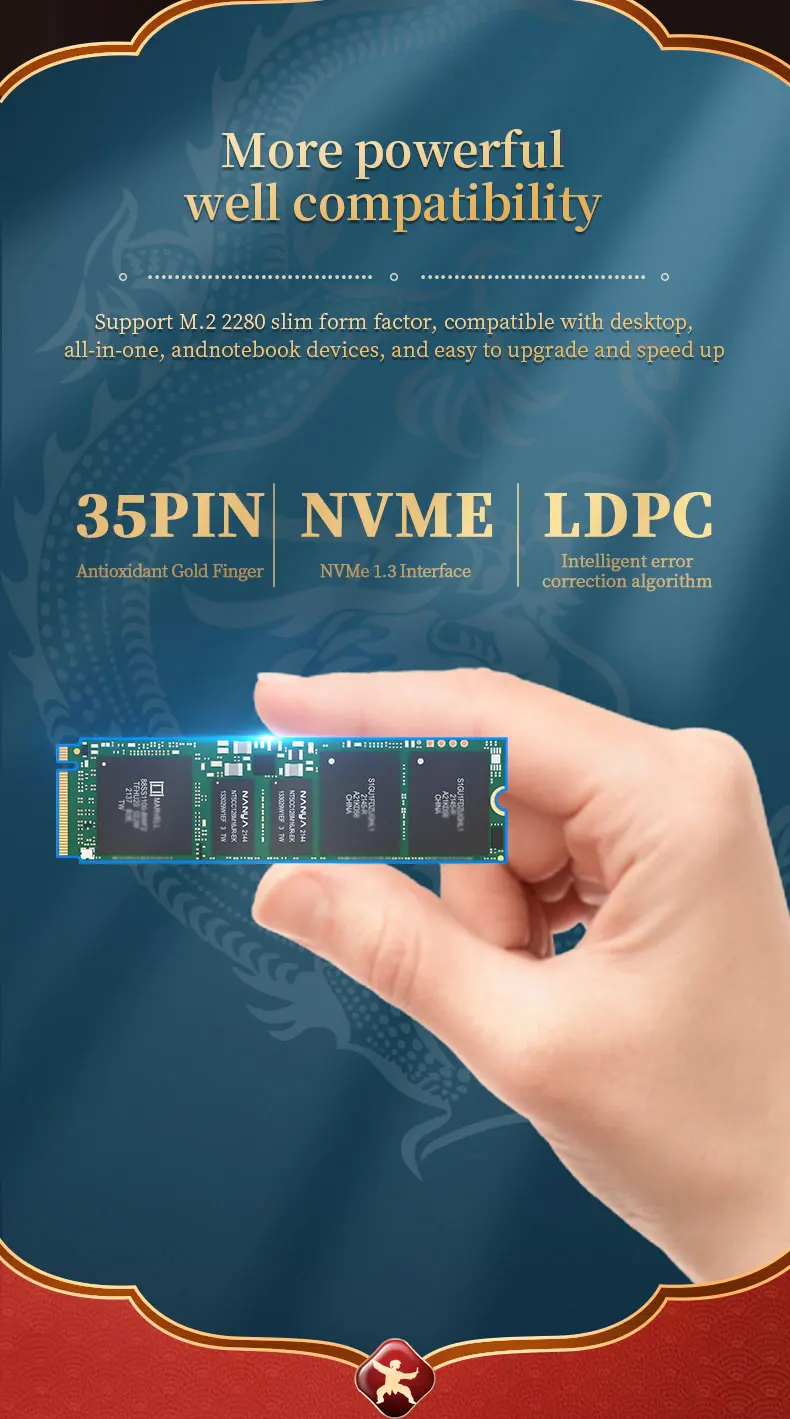
- Size: M.2 2280
- Interface Type: PCI Express
- Application: Desktop,Laptop,Server
- Brand Name: huadisk
- Origin: Mainland China
- Type: Internal
- Style: SSD
- Certification: CE,FCC,RoHS
- Model Type: HYV512X3(MWR)
- Interface Type: NVMe PCIe 3.0
- External cache: 512MB
- Capacity: 256GB/512GB
- Physical dimension: 80mmX22mmX3mm
- Input Volatge: 3.3V±5%
- Operation Temperature: 0-70℃
- Warranty: 3 years warranty
- Suitable system: Windows 7,Windows 8.1,Windows 10,linux
- Applicable To: Notebook PC laptop Desktop
- nvme m2 feature: ssd nmve m2
- nvme m2 ssd feature: ssd m2 nvme
- nvme m2 ssd: ssd 512gb
- Nvme M2 SSD 512GB: PCIe 3.0×4 with NVMe 1.3
- SSD Nvme M2: 2280 SSD M2 Nvme
- with Cache: 512MB
Order need to know
Please note, some AMD motherboard didnt compatible well, we didn't recommend use AMD motherboard

Descriptions:
>>Product name: M2 NVMe PCIe3.0 SSD 2280(MWR)
>>External cache: 512MB
>>Interface protocol: NVMe PCIe 3.0X4
>>Controller: Marvell
>>Nand Flash Type: TLC
>>Physical dimension: 80(L)X22(W)X3(H)mm
>>SupportCapacity: 256GB/512GB
>>Max Sequential Read: 3300Mbps
>>Max Sequential Write: 2200Mbps
>>Input voltage: 3.3V±5%
>>Storage temperature: 0℃~70℃
>>Warranty/support: 3-year warranty with free technical support
>>TBW of Different capacity: 300TBW [512GB]

Package include:
>>1 X NVMe M2 SSD 2280(MWR)
>>1 X Package box

HUADISK M.2 NVMe PCIe3.0x4 SSD 2280 – MWR








FAQ
Q: Why can't we find solid state drive and read/write data?
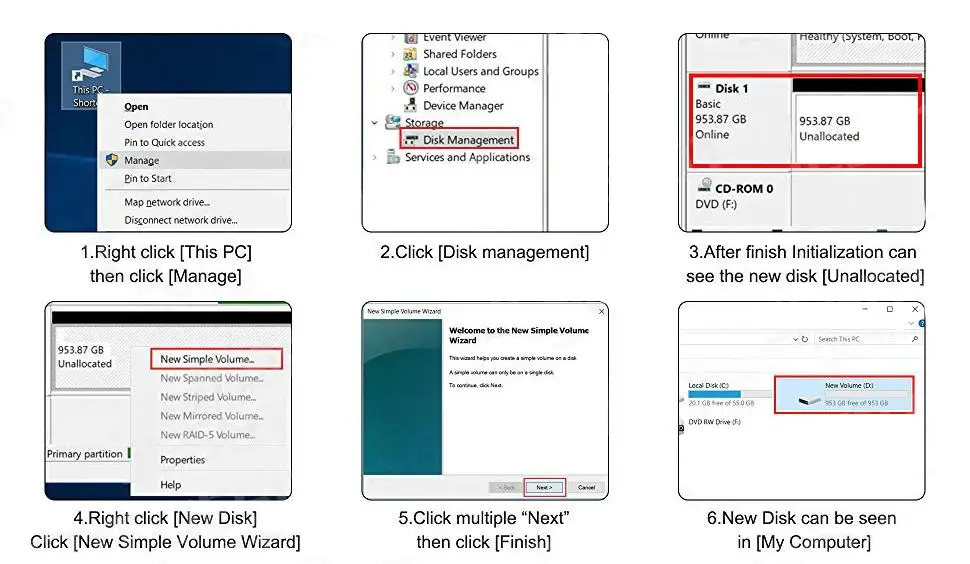
A: The new SSD generally need to be formatted in Disk Management.In Disk Management, select"Create and Format Hard Disk Partition", you will find it. If "Not Initialized" is displayed, right clink on the drive and select"Initialize Disk".
Q: Why is the speed test result different from the description?
A: Our test data is just for reference, our test results related to manyfactors, such as the status of hard disk, slot interface type, computer hardware grape, computer system, test platforms, and test software and so on. So, our speed test result will be different with you, hope you can understand.
Q: How to format SSD and achieve 4K alignment?
A: Win7 or higher version OS is recommended due to Disk Management Formatting function is built in the systems. We suggest NTDS disk partition format and DISKGENIUS tool to make drive partition.
PS: Use as SSD Benchm ark to check if SSD has complied with 4K Alianment and already been under AHC model. Otherwise SSD write/read speed performance and response time will be affected.
Q: Why the capacity of hard disk displayed in the computer will be less?
A: The difference in calculation between the manufacturer and your PC, please google "storage product capacity" for more info. PC defines 1GB = 1.073741824 billion bytes, while the market defines 1GB = 1.00 billion bytes100% real capacity, via H2testw. Storage device conversion formula: nominal capacity X 0.93 = actual capacity. Capacity Notes: 64GB=approx. 55GB 120GB=approx.111GB 128GB=approx. 119GB 240GB=approx. 223G 256GB = approx.238G 480GB = approx. 446GB 512GB = approx. 476GB 960GB =approx.892GB 1TB = approx. 930GB 2TB = approx. 1800GB
Before you use:
For new SSD, please finish disk initialization according to the following steps.
1. Open Start. Search for "Create and format hard disk partitions" and click the top result to open the Disk Management console.
2. Right click "Computer" – "Manage" – "Disk Management".
Find your unallocated disk, right click "Unallocated", and choose "New Simple Volume Wizard". So then your SSD can be detected.

Based on 0 reviews
Only logged in customers who have purchased this product may leave a review.
Related products
-
Computer & Office, Storage Device
M2 SSD Pcie Goldenfir 128GB 256GB M.2 Nvme Disco Internal Solid State
 Computer & Office, Storage Device
M2 SSD Pcie Goldenfir 128GB 256GB M.2 Nvme Disco Internal Solid State
Upgrade your computer’s performance with this Goldenfir M.2 NVMe internal solid state drive. Available in 128GB and 256GB capacities, this PCIe SSD provides much faster data access and improved system responsiveness for your daily office tasks.
SKU: 3256806810290035 -
Computer & Office, Storage Device
Geil P3L M2 SSD 256GB 512GB 1T 2T Internal Solid State Drive M.2 NVME
 Computer & Office, Storage Device
Geil P3L M2 SSD 256GB 512GB 1T 2T Internal Solid State Drive M.2 NVME
Boost your computer performance with the Geil P3L M.2 NVMe internal solid state drive. Choose from 256GB, 512GB, 1T, or 2T capacities to provide fast storage and reliable data access for all your essential office files.
SKU: 3256805263121337 -
Computer & Office, Computer Components
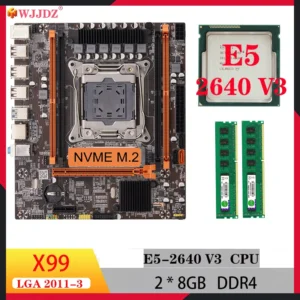
Wjjdz Kit De Placa Base X99 H4 Para Juegos De PC, Intel Xeon E5 2640v3
 Computer & Office, Computer Components
Wjjdz Kit De Placa Base X99 H4 Para Juegos De PC, Intel Xeon E5 2640v3
Build a powerful gaming PC with this Wjjdz X99 H4 motherboard featuring the Intel Xeon E5 2640v3 processor. This complete kit provides the essential hardware components you need to assemble a high-performance workstation or gaming rig.
SKU: 3256807134656915 -
Computer & Office, Storage Device
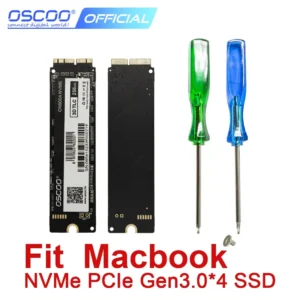
OSCOO NVME SSD For Macbook Pcie3x4 Internal Solid State Drive For Mac
 Computer & Office, Storage Device
OSCOO NVME SSD For Macbook Pcie3x4 Internal Solid State Drive For Mac
Upgrade your MacBook with this OSCOO NVME SSD featuring high-speed PCIe 3×4 interface technology. This internal solid state drive provides a reliable storage solution to manage your important files and boost overall system performance.
SKU: 3256807122612047





There are no reviews yet.